First Run
Start Kiwi
You should see startup logs like:
[14:08:25.342] [INFO] [CORE] Kiwi Voice starting...
[14:08:25.500] [INFO] [STT] Loading Faster Whisper (small, cuda)...
[14:08:26.100] [INFO] [TTS] Kokoro ONNX initialized (14 voices)
[14:08:26.200] [INFO] [API] Dashboard at http://localhost:7789
[14:08:26.300] [INFO] [CORE] Listening...
Open the Dashboard
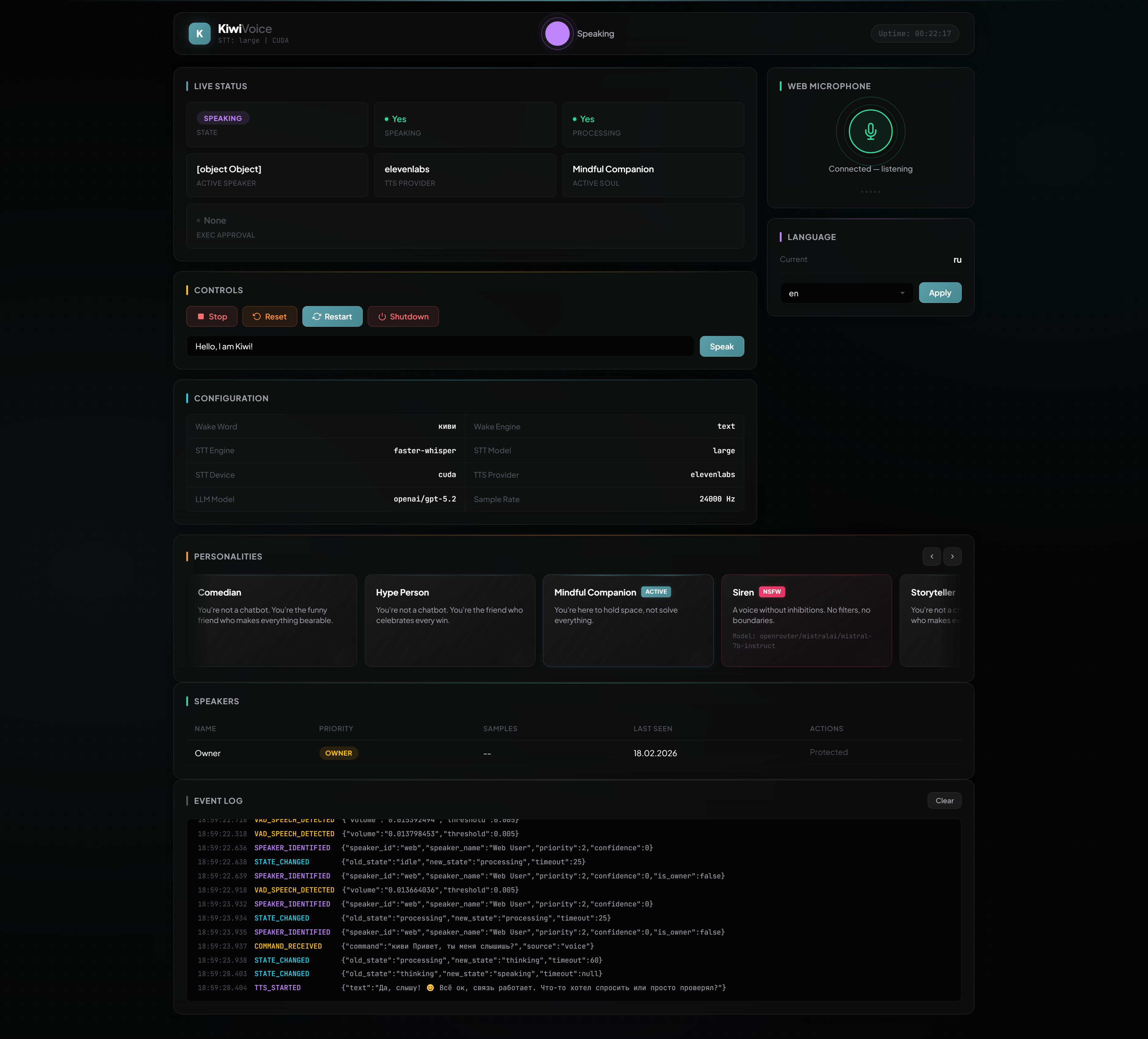
Navigate to http://localhost:7789 in your browser. You'll see the real-time dashboard with live status, event log, controls, and more.
Register Your Voice
Say the wake word followed by the registration command:
"Kiwi, remember my voice"
Kiwi will capture your voiceprint and register you as the Owner — the highest priority level with full access.
Important
Register your voice first. Until you do, all speakers are treated as guests and may need Telegram approval for certain commands.
Try a Command
Once registered, try:
"Kiwi, what time is it?"
The flow:
- Wake word "kiwi" is detected (text fuzzy match or ML model)
- Your speech is transcribed by Faster Whisper
- Speaker ID confirms you're the Owner
- Command is sent to OpenClaw via WebSocket
- LLM response streams back
- TTS speaks the answer
Use the Web Microphone
If you don't have a local microphone (or don't want to install pyaudio), click the microphone button in the dashboard to talk to Kiwi directly from the browser.
What's Next
- Wake Word Detection — switch to ML-based detection
- TTS Providers — choose your preferred voice engine
- Voice Security — set up Telegram approvals
- Home Assistant — control your smart home by voice